Photo Cake

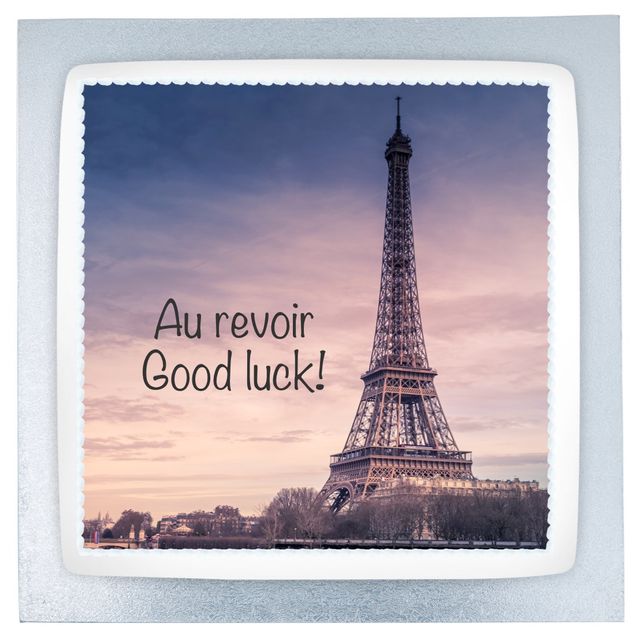
Perfect for birthdays and celebrations, create a custom cake topped with your image. Whether it’s a birthday, celebration or just for fun, create something memorable for your event. Head in store to get started.

How it works

  • 1

    Select your shape and size

    Cake sizes perfect for 12 to 75 people.

  • 2

    Your image

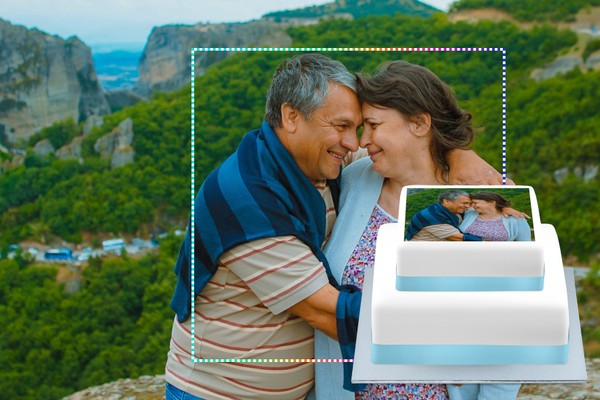
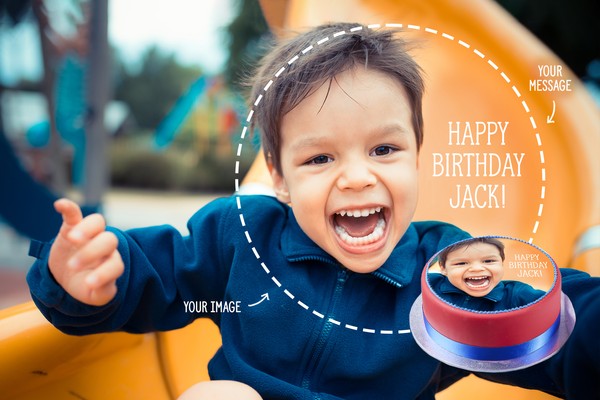
    Personalise your image* with text and filters.

  • 3

    Customise your cake

    Choose your flavour, sprinkles or ribbon colour.

Square Photo Cake

Square cakes from $80.00

Perfect for 20 to 50 people our single tier square cakes come in three great sizes.

  • Pickup or delivery available
  • Multiple sizes available
  • Personalise your image* with text and filters
  • Available in 4 fantastic flavours with 2 fillings
  • Your choice of fondant icing with a ribbon or buttercream with sprinkles

Get started

Design a Photo Cake Options

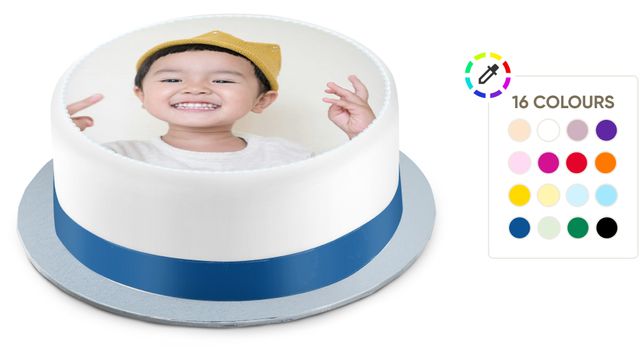
Fondant icing with a ribbon

A smooth, fully iced cake in the colour of your choice, finished with a ribbon around the base. A simple, classic style that works with any celebration theme.

Get started

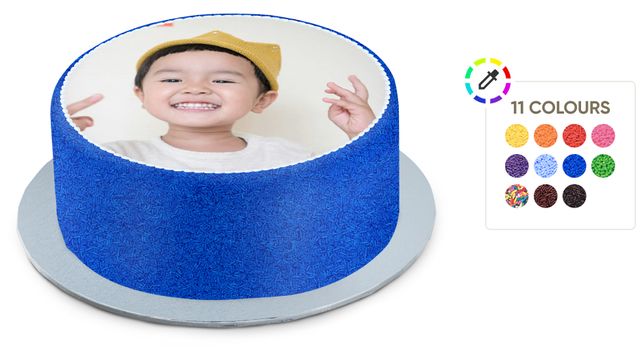
Buttercream with sprinkles

Soft buttercream icing covered in colourful sprinkles of your choice. Bright, cheerful and great for any celebration.

Get started

Frequently Asked Questions

How do I Design a Photo Cake?

Design your photo cake in 3 easy steps:

  1. Select your shape and size
  2. Upload your image and personalise with text and filters
  3. Customise your cake with your choice of icing with a ribbon or sprinkles colours

What is the lead time for a Design a Photo Cake?

Photo cakes require a 3 day lead time.

If you do need to cancel a design a cake order, you will need to do so 3 days or more ahead of your pick up date.

What flavours do Design a Photo Cake come in?

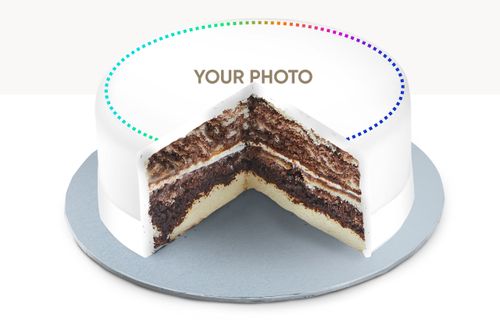
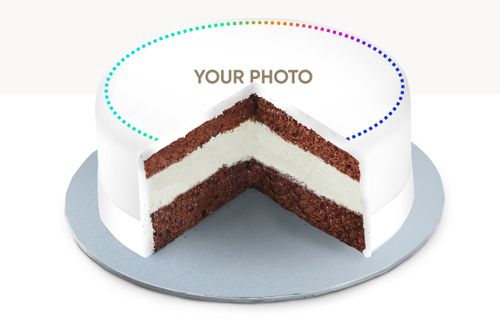
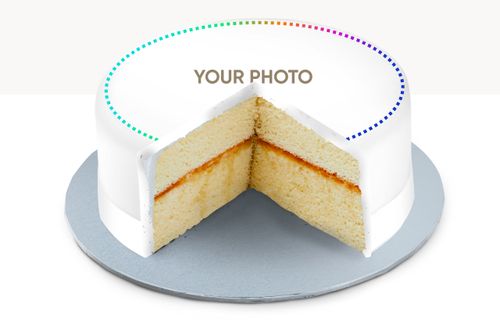
Available in 4 fantastic flavours with 2 fillings, you can design a photo cake perfect for any occasion.

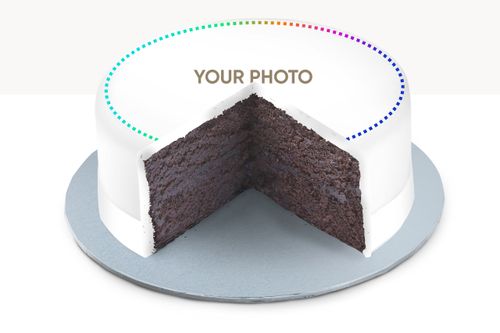
  • Chocolate Mud Cake
  • Angel Mud Cake
  • Marble Cake
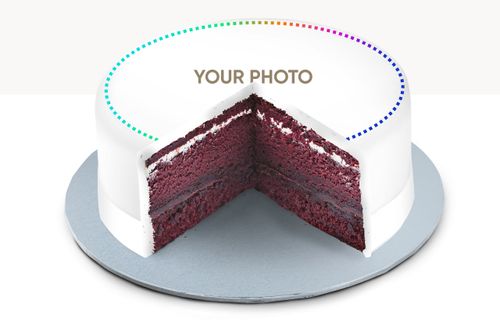
  • Red Velvet Cake
  • Chocolate Cream Cake
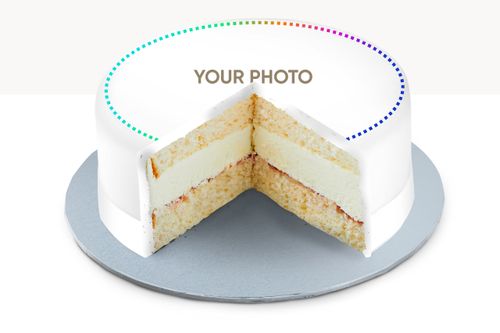
  • Vanilla Cream Cake

What sizes do Design a Photo Cake come in?

Photo cakes are available in multiple shapes and sizes, perfect for birthdays and celebrations.

Single tier cakes are available in round, square and rectangle, perfect for 14 to 36 people.

Two tier cakes are available in round and square, perfect for 28 to 48 people.

Design a Photo Cake Requirements

Image requirements

Minimum Image Size:

A minimum image size of 1080px x 1080px is required to ensure your image can be printed on the cake.

Maximum File Size:

The maximum file size is 8MB with a maximum image size of 6000px x 6000px.

Approved Image Types:

Accepted image types include JPEG, PNG and HEIC.

I can't upload my image?

If you are having trouble uploading your image:

1. Check that your image meets the above size requirements
2. Check that your image is an approved image type (JPG, PNG and HEIC)

How to resize a photo on Apple mobile devices

  1. Open the Photos app, select your image, and tap the Share icon.
  2. Choose Save to Files and select a location to save the image.
  3. Open the Files app, find the image, and tap and hold it.
  4. Select Quick Actions, then Convert Image.
  5. Choose a file format and a smaller size (like Small or Medium) to reduce the file size.

Alternatively you can crop your image so it is smaller or use an image compression app.

How to resize a photo on Android mobile devices

  1. Open the photo you want to resize in your phone's Gallery app.
  2. Tap the Edit icon (it might look like a pencil).
  3. Look for a Resize or Crop option. You may need to tap a "More options" menu (three dots) to find it.
  4. Choose your desired dimensions or select a percentage.
  5. Save: the new version, which may create a copy to keep the original photo intact. 

How to use the image editor

  1. Upload your image (make sure it meets the image requirements noted above)
  2. Options available below your image allow you to:
    • Crop, rotate and scale the image
    • Add Text and shapes to the image
    • Apply Filters to the image
    • Finetune colours of the image
  3. Save your image and proceed to the next step
  4. Review your image on the final step, go back and edit or add to cart.

Crop:

  1. Drag the corners of the crop area to crop in on your image
  2. Drag the image to reposition it within the crop area
  3. Rotate the image by sliding the scale left or right
  4. Scale the image by sliding the scale left or right

Text

  1. To add text, drag a text area on top of your image and start typing
  2. Increase the bounding box by clicking on the text to focus on it and dragging the bounding box
  3. Alter the size, font and colour of your text below the image
  4. Draw lines and shapes
  5. Delete text by clicking on the text to focus on it and then the bin icon

Filter:

  1. Swipe to view all filter options
  2. Select a filter to preview it on the image
  3. To reset, swipe to the far left and select default 

Finetune

  1. Select the item you wish to finetune e.g. contrast
  2. Slide the scale left and right to change the amount

Undo and start again:

  1. Undo changes using the arrow above the image
  2. Want to start again? Click start again to re-upload your image.

Save

  1. When you are done editing your image, click save then proceed to the next step.

Edit and review:

  1. You can review your image at the last step before you add to cart.
  2. Want to make changes? Use the edit icon to go back and make changes.
  3. Once your cake is added to cart, you will not be able to edit it.

*Due to licensing restrictions we cannot print any images from Disney, Star Wars, Marvel or Pixar. Any use of these images will not be printed.

Cancellation policy
If you do need to cancel a design a cake order, you will need to do so 3 days or more ahead of your pick up date.